MaxTAF Cloud — User Guide
MaxTAF Cloud is a browser-based test-automation platform. You write, organise, schedule and run automated tests — including Maximo tests authored in MaxTAF's own MXML language — entirely in the cloud, and read rich reports without installing anything.
All you need is a computer with internet access and a modern browser. This guide is organised to match the product's current layout: a grouped side rail with Dev, Ops, Admin and Learn areas.
This guide was rebuilt and verified against the live product at mx1.maxtaf.com in July 2026. Screenshots are from the current UI. Sections describing capabilities added since the previous guide are marked New; reworked areas are marked Changed.
What's new in 2026
If you last used the older guide, these are the biggest changes to be aware of:
AI Assistant New
A built-in AI chat that helps you write and debug test code, with a chat per case/suite. See AI Assistant.
AI test cases New
Write a test in plain English and let an AI agent run it — with recording into reusable MXML. See Writing AI Test Cases.
Grouped navigation Changed
The flat menu is now a rail grouped into Dev / Ops / Admin / Learn, with a Home dashboard.
MXML case type New
Author Maximo tests in MXML and view the transpiled Java side-by-side. See Script tab.
Platforms & mobile New
Cases carry a Platform (Web / Android / iOS); mobile engines appear in the status bar. See Mobile testing.
AI configuration New
Connect Claude, Gemini, OpenAI or a custom model under Project Settings. See AI configuration.
Parameter configs Changed
Each case can store multiple named parameter sets (e.g. Config_1) instead of one box.
Register & sign in
Open mx1.maxtaf.com. On the sign-in screen enter your Email and Password and choose Sign In, or use Sign in with Google. New users click Register, fill in their details and confirm through the link emailed to them.
Use the eye icon to reveal the password, and Remember me to stay signed in on a trusted machine.
Projects
After signing in you land on the project selector. A project is an isolated container for its own cases, suites, schedules, files, parameters and settings — nothing leaks between projects.
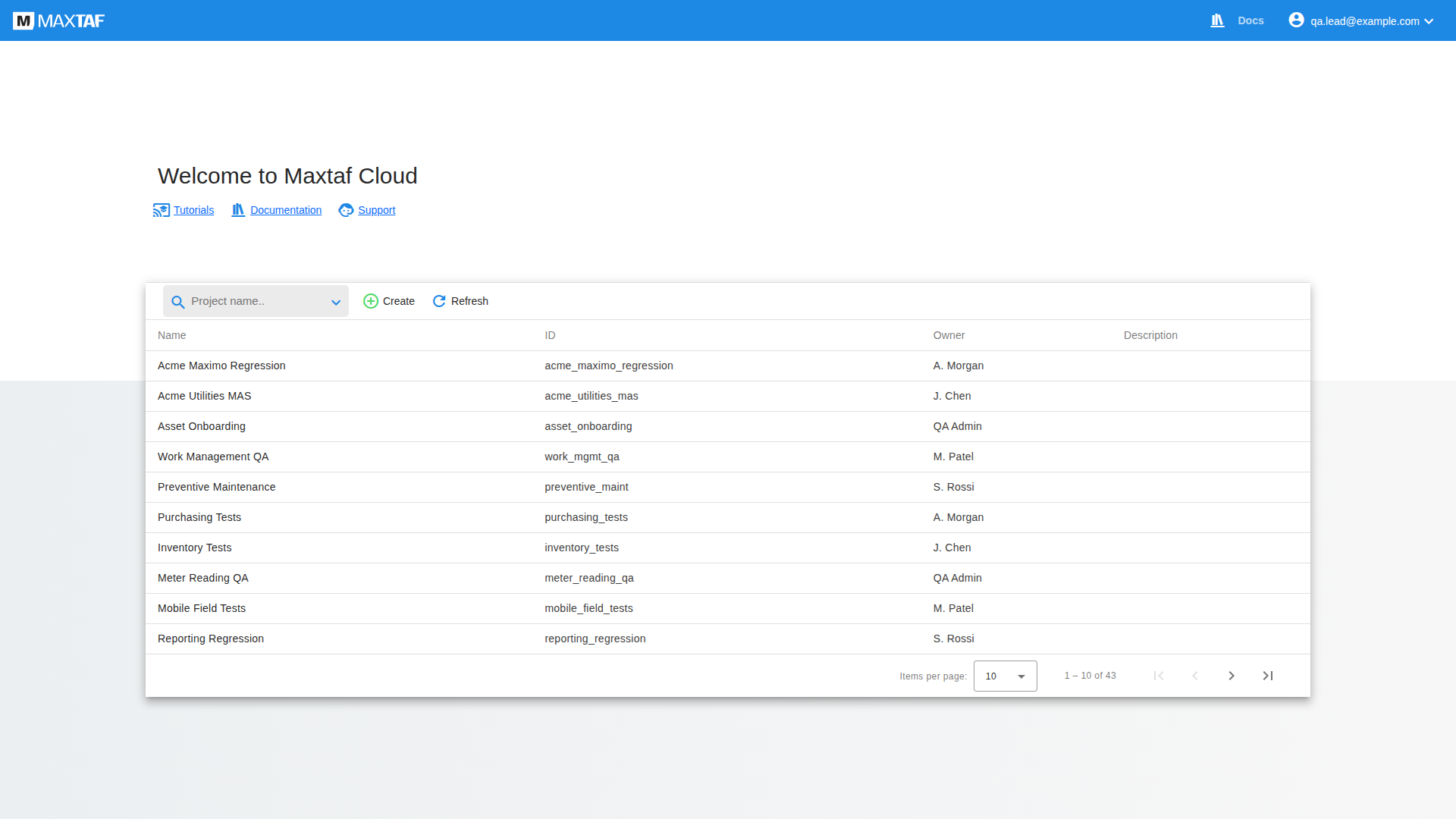
- Open a project — click its row (or search by name in the box).
- Create a project — click Create, give it a name and confirm. You are taken straight into it.
- Every column (Name, ID, Owner, Description) is shown; the list is paginated.
Once inside a project you can switch to another at any time using the project name dropdown in the top-left of the header.
The interface & navigation Changed
Inside a project the first thing you see is the Home dashboard. The left side is now an icon rail grouped into four areas. Hover any icon for its label.
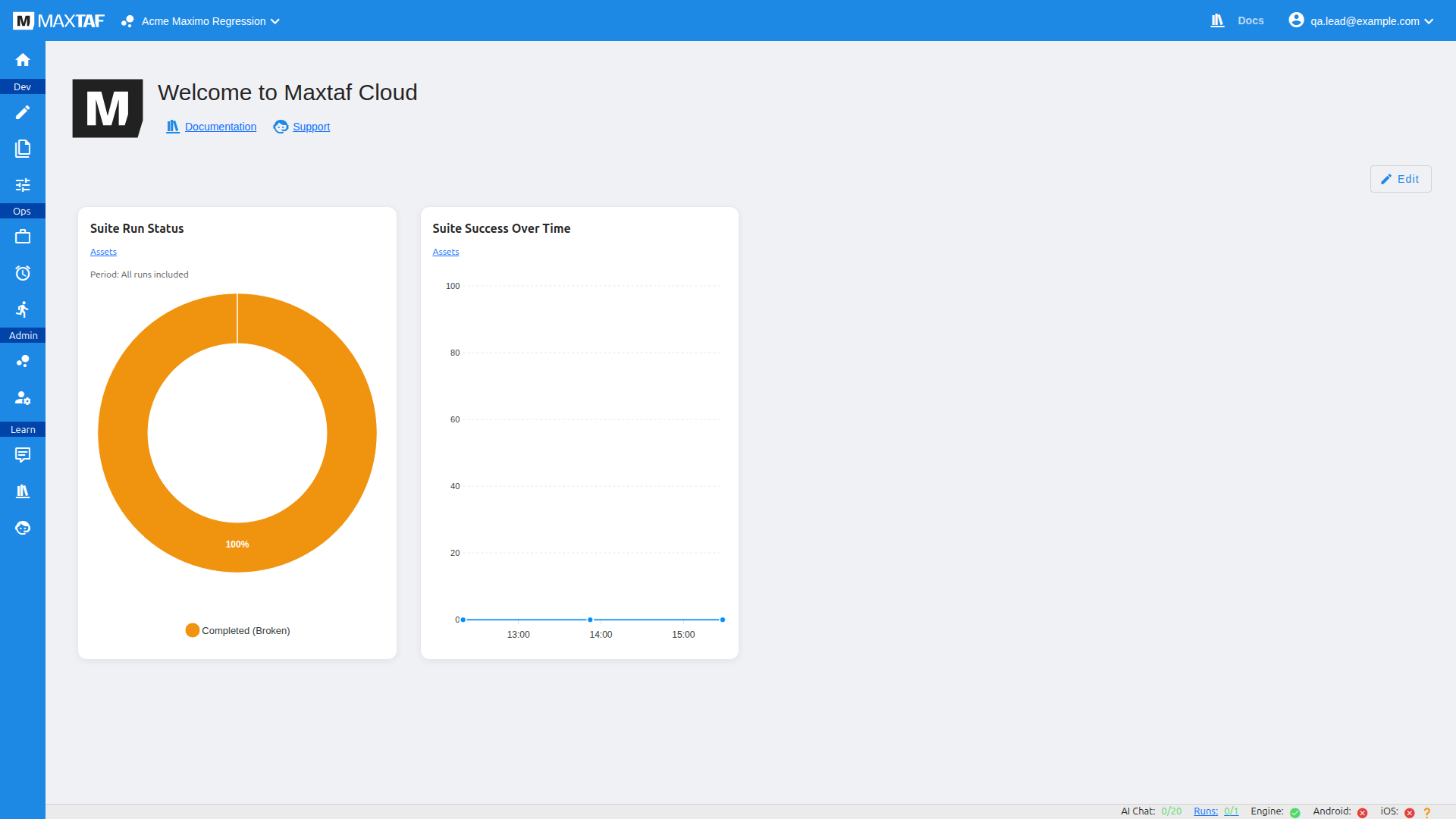
| Group | Contains | Purpose |
|---|---|---|
| (top) | Home | Project dashboard & widgets |
| Dev | Workspace · File System · Parameters | Author cases, edit files, manage project parameters |
| Ops | Suites · Schedules · Runs | Group, schedule and monitor executions |
| Admin | Project Settings · User Settings | Configure the project and your account |
| Learn | AI Chat · Documentation · Support | Get help — including the built-in AI Assistant |
A status bar runs along the bottom of every screen showing live counters and engine health:
- AI Chat x/20 — AI Assistant messages used against your quota.
- Runs x/1 — active vs allowed concurrent runs.
- Engine ●, Android ●, iOS ● — green when that execution engine is up.
Your first case
A case is a single automated test. To create and run one:
- Go to Dev ▸ Workspace and, on the List tab, click Create.
- Give the case a name, choose its type/language and testing framework, optionally pick a template, and confirm.
- The case opens. Press Run, then confirm. Watch progress in the run panel — you can follow the browser live (see Runs & reports).
- Edit behaviour on the Script tab (see Script tab). Shortcuts: Alt+R run, Alt+C compile.
MaxTAF's Maximo cases are usually authored in MXML and often produced by the MaxTAF recorder or an AI test case. A recorded case navigates using a project parameter, e.g. driver.get(mxService.getParam("mx.maximo.address")), rather than a hard-coded URL. New here? Start with the Quickstart.
Workspace
The Workspace (Dev ▸ pencil icon) lists every case and page object in the project. Work opens in tabs beside the permanent List tab.
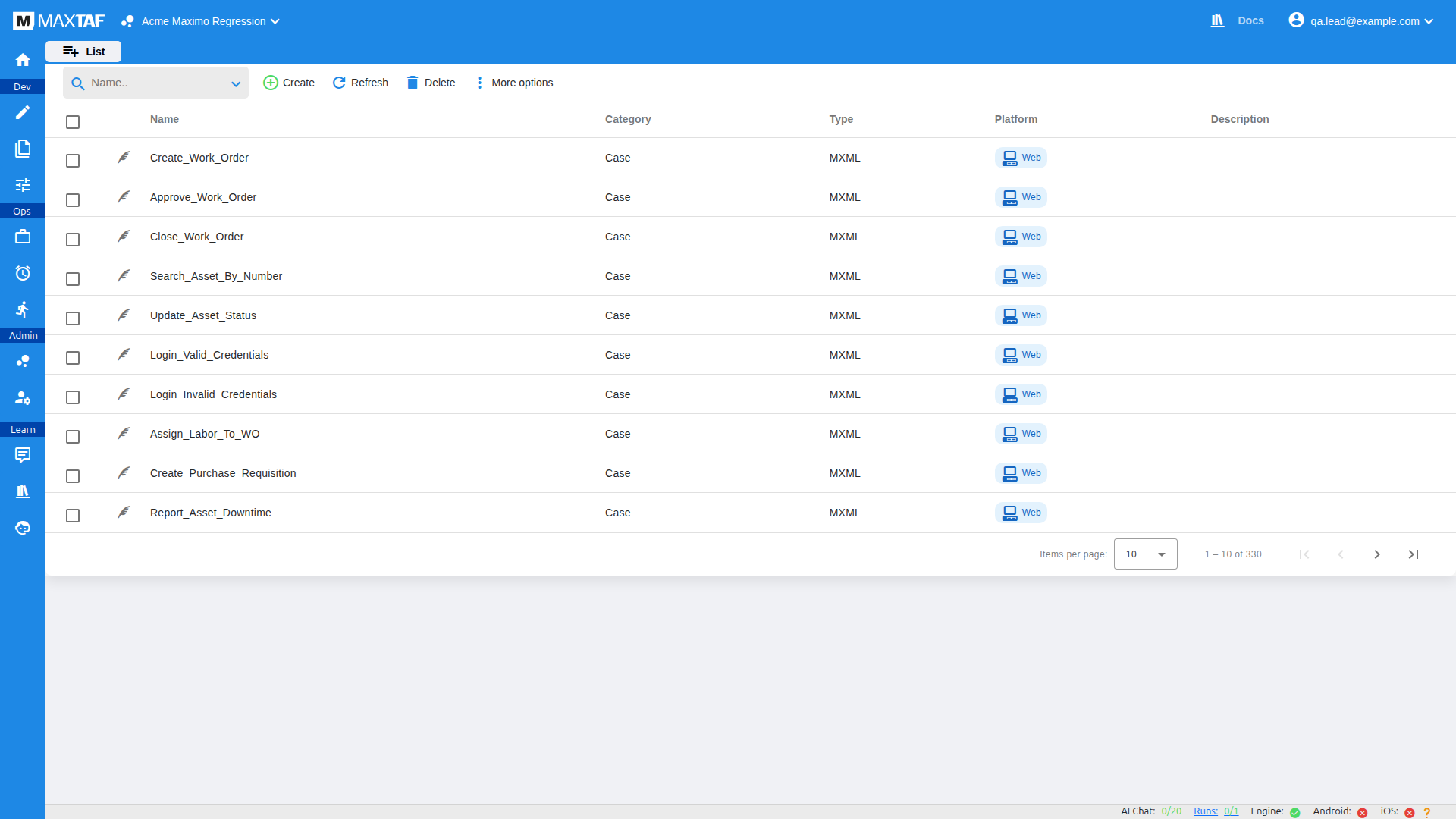
List view
Toolbar actions:
- Create — new case or page object (choose type/language/framework, optional template).
- Refresh — reload the list.
- Delete — send checked items to the Bin (restorable).
- More options — Import, Import info, Compile (with compile logs), Bin/restore, and export.
Select items with the row checkboxes — selection persists across pages, and with nothing selected an action applies to everything matching the current filter. Per-item actions (via the row menu / More options) include Duplicate, Export, Open in File System, and Convert MXML to Java New.
The list now shows Category, Type and Platform columns. Type reflects the case language (MXML, Java, Python, JavaScript…); Platform reflects where it runs (Web, Android, iOS).
Case editor
Opening a case shows four tabs: Main, Script, Schedule and Run History. The Main tab holds the case's identity and its parameters.
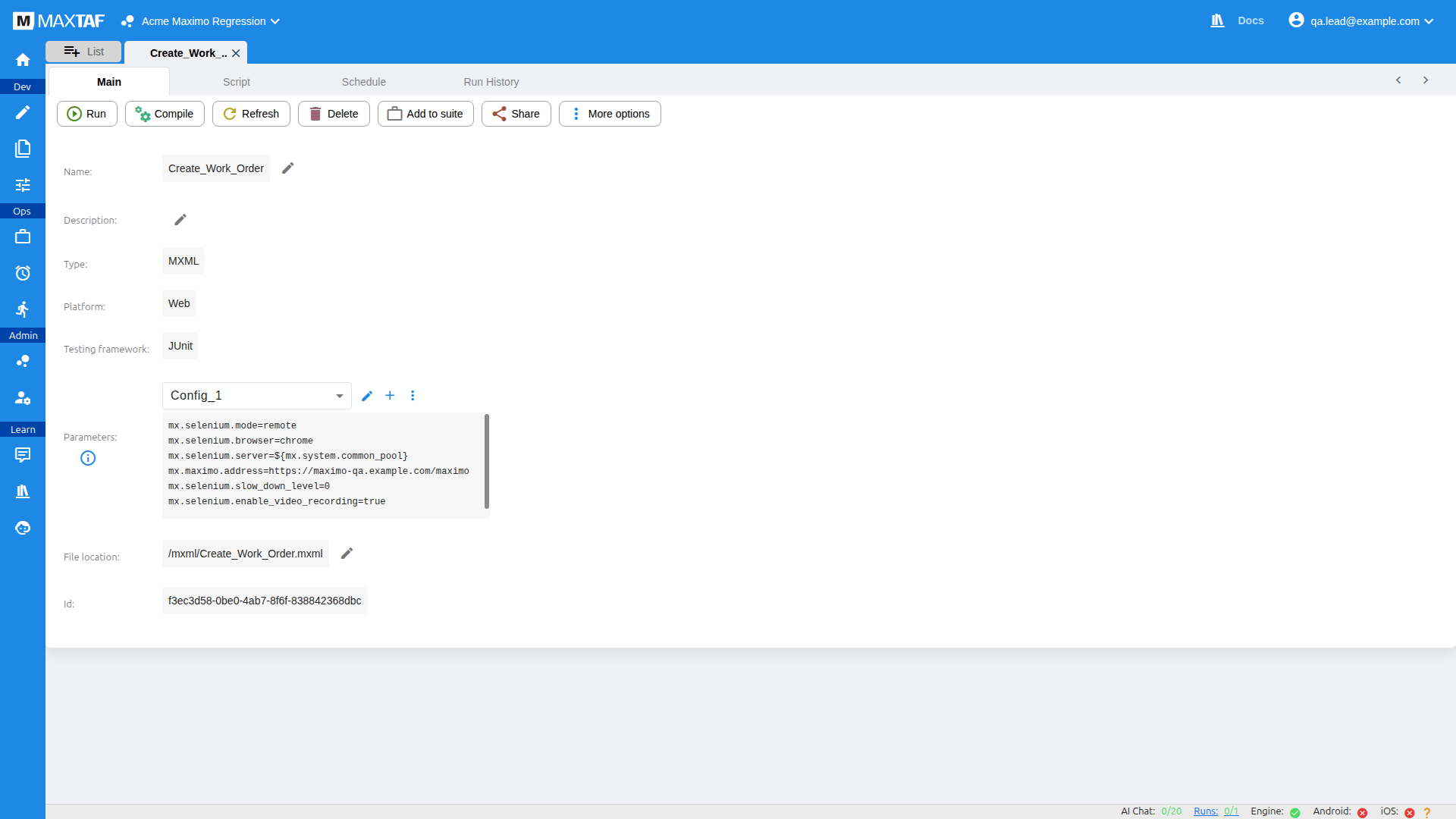
Toolbar: Run, Compile, Refresh, Delete, Add to suite, Share, More options.
- Type / Platform / Testing framework are shown as structured fields (e.g. MXML · Web · JUnit).
- Parameters use a named-configuration dropdown (e.g.
Config_1) so a case can store several parameter sets and switch between them Changed. Use the pencil/+/⋮ controls beside it to edit, add or manage configs. - File location links the case to its file in the File System; Id is its unique identifier.
Script tab & MXML New
The Script tab is the code editor (Monaco — the same engine as VS Code). For Maximo/MXML cases it shows two sub-tabs: MXML (the source you edit) and JAVA (the transpiled Java, read-only).
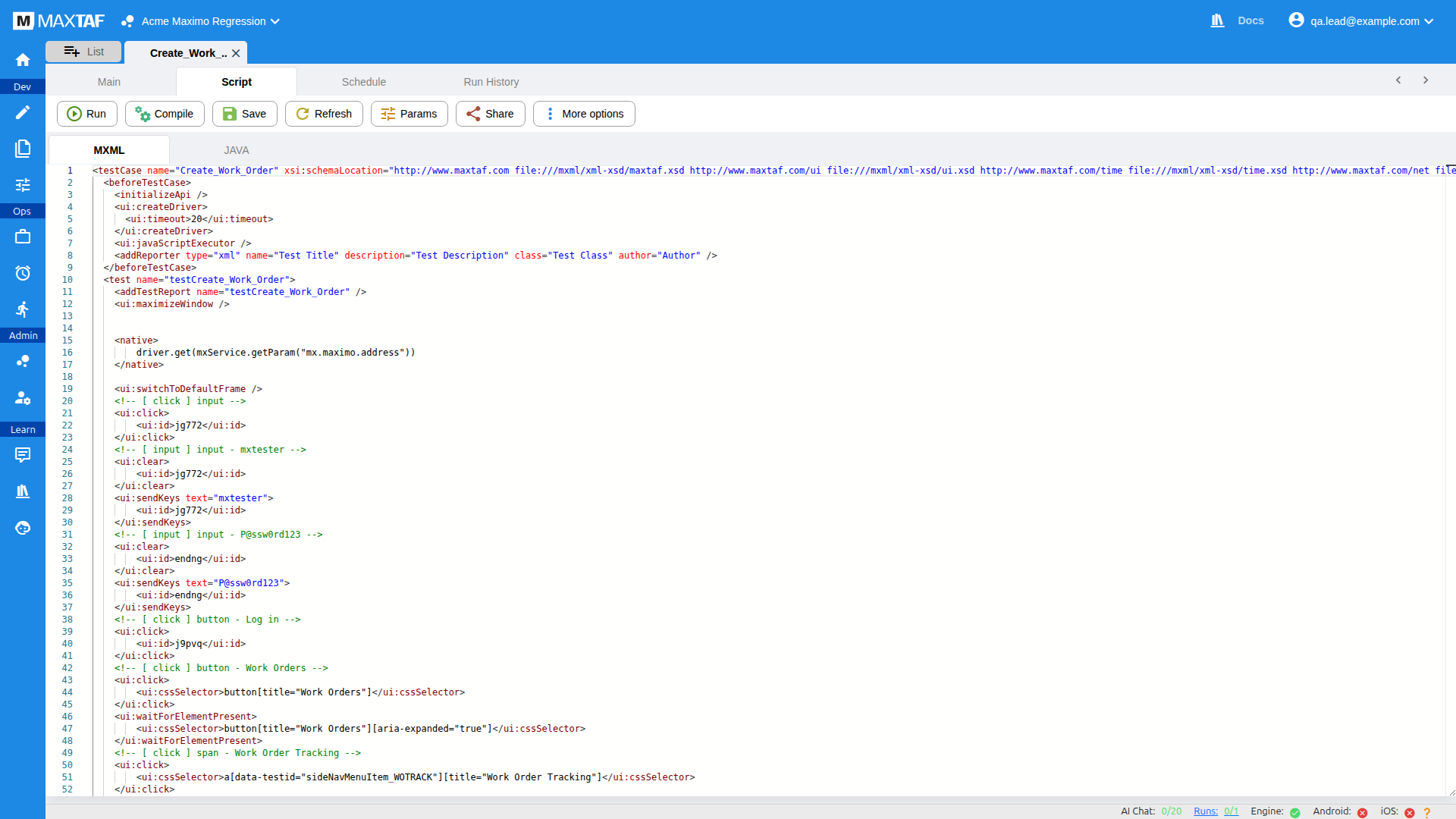
<ui:click>/<ui:id> and inline <native> Java. Switch to the JAVA sub-tab to see the generated Java.MXML is MaxTAF's XML-based language for Maximo testing; it compiles to Java. A snippet looks like:
<testCase name="Login_do_nothing_1">
  <beforeTestCase>
    <initializeApi />
    <ui:createDriver><ui:timeout>20</ui:timeout></ui:createDriver>
    <ui:javaScriptExecutor />
  </beforeTestCase>
  <test name="testLogin_do_nothing">
    <ui:maximizeWindow />
    <native>driver.get(mxService.getParam("mx.maximo.address"))</native>
    <ui:click><ui:id>username</ui:id></ui:click>
  </test>
</testCase>
Script-tab toolbar: Run, Compile, Save, Refresh, Params, Share, More options. Editor conveniences carried over from before:
- Code completion — active when the language-server indicator (bottom-right of the editor) is green.
- Code history — view, compare and revert previous versions.
- Code lookup — open another script side-by-side (from any of your projects) to copy snippets.
- Failure-line jump — click a line number in an error to jump to it.
- Format document — right-click ▸ Format Document.
Open the AI Assistant from the Learn group to ask questions about the open script or have it draft changes.
Advanced run dialog
When you Run a case, expand Advanced for four groups of options:
| Section | What it does |
|---|---|
| Performance | Run the case multiple times, serial or parallel (parallel counts against your concurrent-run limit). |
| Params | Add extra run parameters with a mode: Use as priority params, Use only these params, or Use as case params. |
| Data driven | Pick a data file and run one iteration per row, serial or parallel. See mx.datadriven.*. |
| Api Requests | Shows CLI/API snippets to trigger this run programmatically. |
Case parameters
Parameters configure how a case runs. They can be set at several layers (test/case, suite, user, project, schedule) — most often on the case. Two kinds:
- Standard (reserved) — fixed names beginning
mx.whose value you set, e.g.mx.selenium.server,mx.selenium.enable_video_recording,mx.run.case.repeat_on_failure. Maximo cases addmx.maximo.addressand related keys. - Custom — any name/value you choose, read in code as strings, e.g.
assetNum=PUMP-1042,woStatus=APPR.
Read parameters in code via the API service; inject a project parameter into a case parameter with ${mx.project.NAME}:
// Java
String maximoUrl = mxService.getParam("mx.maximo.address");     // e.g. https://maximo-qa.example.com/maximo
String asset     = mxService.getParam("assetNum");              // custom param, e.g. "PUMP-1042"
String envUrl    = mxService.getProjectParam("maximo_env_url"); // shared project parameter
See the full Parameter reference for every mx.* key, with example values and usage for each.
Sharing & duplicating
- Share — generates a link to Share for viewing (guests can run & view) or Share for editing (a copy is placed in the recipient's project). The project must be public for non-members.
- Duplicate — copies the case/page object with an incrementing number appended to the name.
Case types & languages
MaxTAF Cloud runs cases in several languages, chosen when you create the case:
| Language / type | Notes | Compiles? |
|---|---|---|
| MXML New | MaxTAF's XML language for Maximo testing; transpiles to Java. Edited on the MXML sub-tab. Full MXML reference → | Yes → Java |
| AI New | Write the test in plain English; an AI agent drives a real browser to run it, and can record a reusable MXML case. See Writing AI Test Cases → | n/a |
| Java | Full Java with the MaxTAF ApiService; Maven-based file structure. | Yes |
| Python | Uses maxtafapiservice; Robot Framework sits on top of Python. | No |
| JavaScript | Uses the JS ApiService module. | No |
| Robot Framework | Keyword-driven, layered on the Python structure (.robot files). | No |
Page objects & UTAM
A page object models a screen for reuse across cases. Create one via Create ▸ set type to Page Object. In addition to the standard languages, page objects support UTAM, which compiles into two page objects (Java + JavaScript). Compileable types are Java, MXML and UTAM.
Platforms: every case targets a Platform — Web today, with Android and iOS for mobile testing (see Mobile testing).
File system
Dev ▸ File System is the project's file tree. Two panes — a file tree and an editor. You can create/rename/delete/copy/move files and folders, zip/unzip, upload/download, add libraries, and run or compile cases straight from a file.
- The project root has a folder per language. Java uses Maven (
pom.xml,src,target); Python/JavaScript havemaxtaf,modules/scriptsfolders. - A templates folder stores case/page-object templates; a runs folder stores run artefacts (videos, reports) under a folder named for each run id.
- The Other Project tab opens another project side-by-side (read-only) so you can copy files in.
Adding Java libraries
Add a dependency by pasting its Maven block into pom.xml. For a local jar, use a system-scoped dependency:
<dependency>
  <groupId>com.example</groupId>
  <artifactId>my-lib</artifactId>
  <version>1.0</version>
  <scope>system</scope>
  <systemPath>${PATH_TO_LIBRARY_FILE}</systemPath>
</dependency>
Parameters page
Dev ▸ Parameters manages project parameters — values any case in the project can read (handy for environment URLs, credentials tokens, counters).
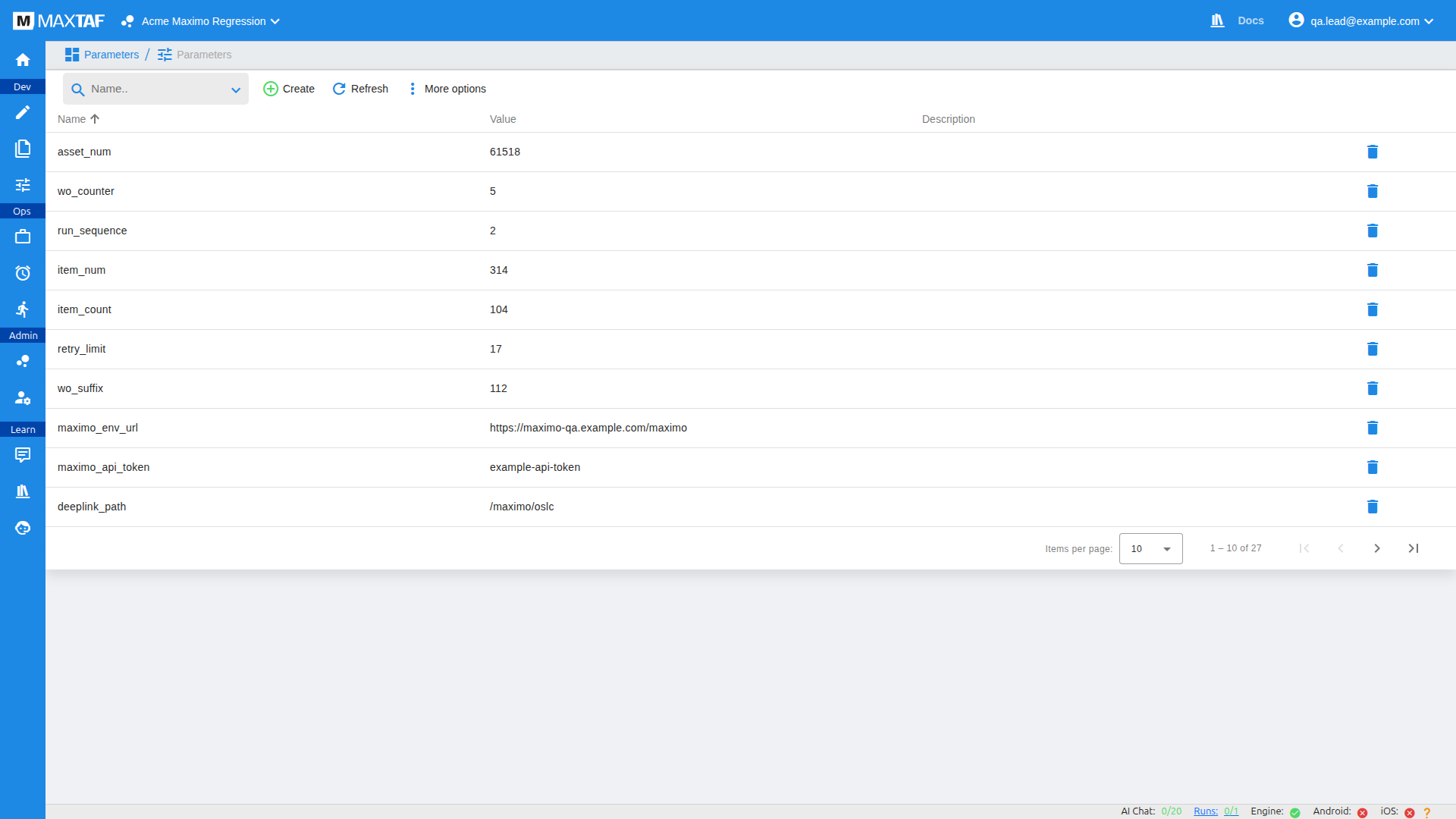
maximo_address) feed Maximo cases.- Create — name, value, optional description, then Add. The list is sorted by name.
- Edit — change a parameter's value/description and save. The name cannot be changed (recreate to rename).
- Delete — the bin icon on the right.
Read a project parameter in code with mxService.getProjectParam("NAME"), set one with mxService.setProjectParam("NAME","value"), and reference one from a case parameter as ${mx.project.NAME}. Whole-number parameters can be flagged to auto-increment on each read.
Suites
A suite (Ops ▸ Suites) groups cases (and other suites) so you can run them together and get consolidated Allure reporting.
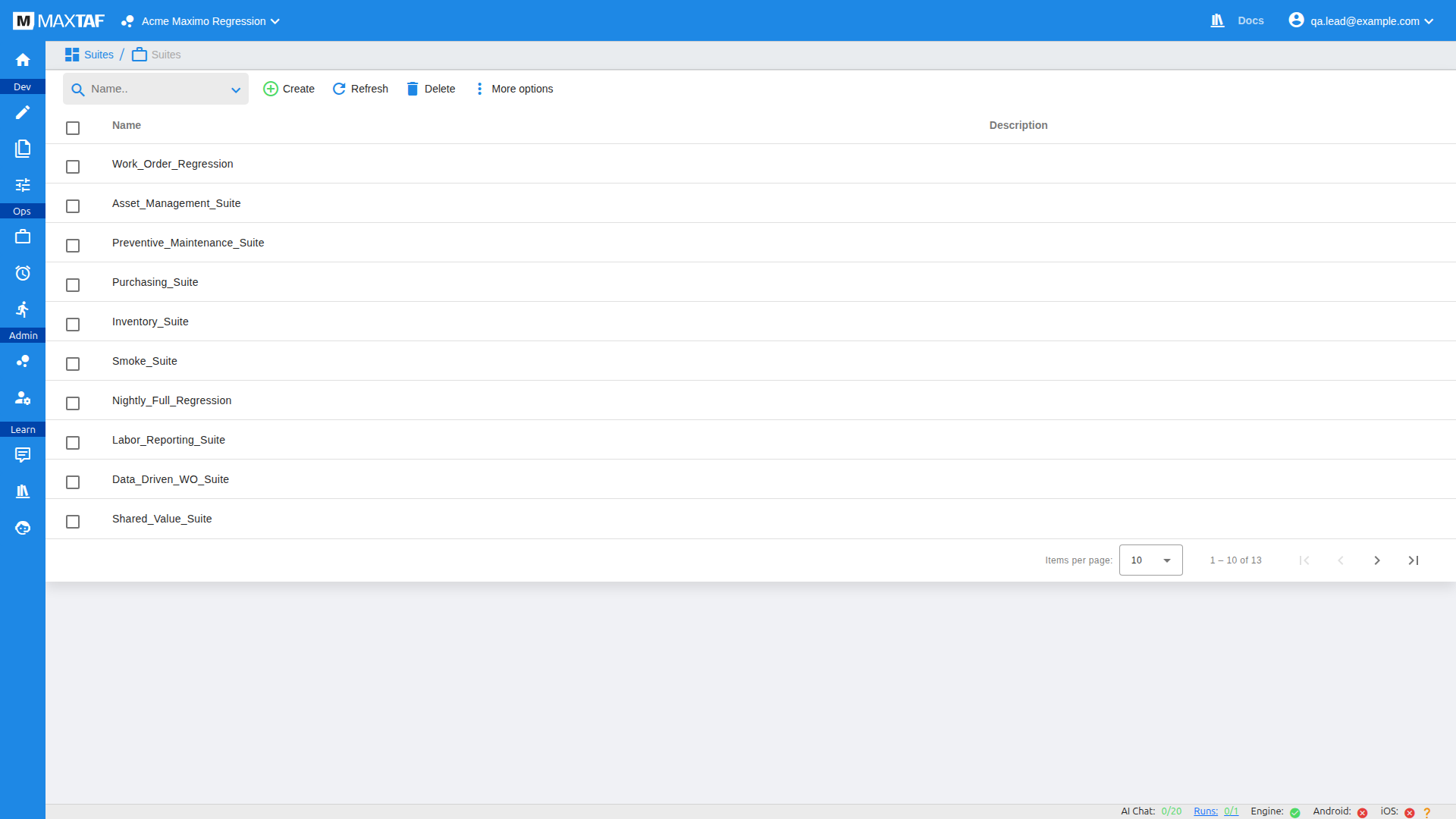
- Create a suite, then Add items on the suite page (a Cases and a Suites tab let you build suites-of-suites). You can also push a case in from its editor with Add to suite.
- Ordering — the Sequence column controls order (lower runs first). Items sharing a sequence number run in parallel (subject to your concurrency limit).
- Sharing data between items — use the run bulletin board:
setSharedRunValue(name,value)/getSharedRunValue(name). Values are visible across the whole suite-of-suites hierarchy. - Suite parameters override identically-named parameters in contained cases.
- Export / Import (via More options) include the contained items; deleted suites can be restored from the Bin.
Schedules
Ops ▸ Schedules runs a single case or suite on a fixed timing (to schedule many cases, put them in a suite). Create ▸ name ▸ pick the case/suite ▸ choose the timing (default every day at 1am).
A schedule page has:
- Main — Name, Description, Active state (paused/active) and the target item.
- Schedule data — the timing (minutely / hourly / daily / weekly / monthly, via a cron-style picker) plus last & next run dates.
- Run data — run parameters (e.g.
mx.notify), repeat count, and run type (serial/parallel). - Toolbar: Refresh, Pause/Resume, Export, Go to Case, Delete; a Run Log tab lists every run this schedule produced.
You can also create a schedule from the Schedule tab inside a case or suite.
Example: a nightly regression that emails on failure
Create a schedule for the Work Orders suite, set the timing to Daily at 01:00, and under Run data ▸ Run params add:
mx.notify=fail
mx.notify.email=maximo-qa@example.com
mx.run.case.repeat_on_failure=1
Now the suite runs every night; if anything fails, the QA mailbox is emailed and each failing case gets one automatic retry first. Set Repeat run to 1 and Run type to parallel to run the suite's cases side-by-side.
Runs & reports
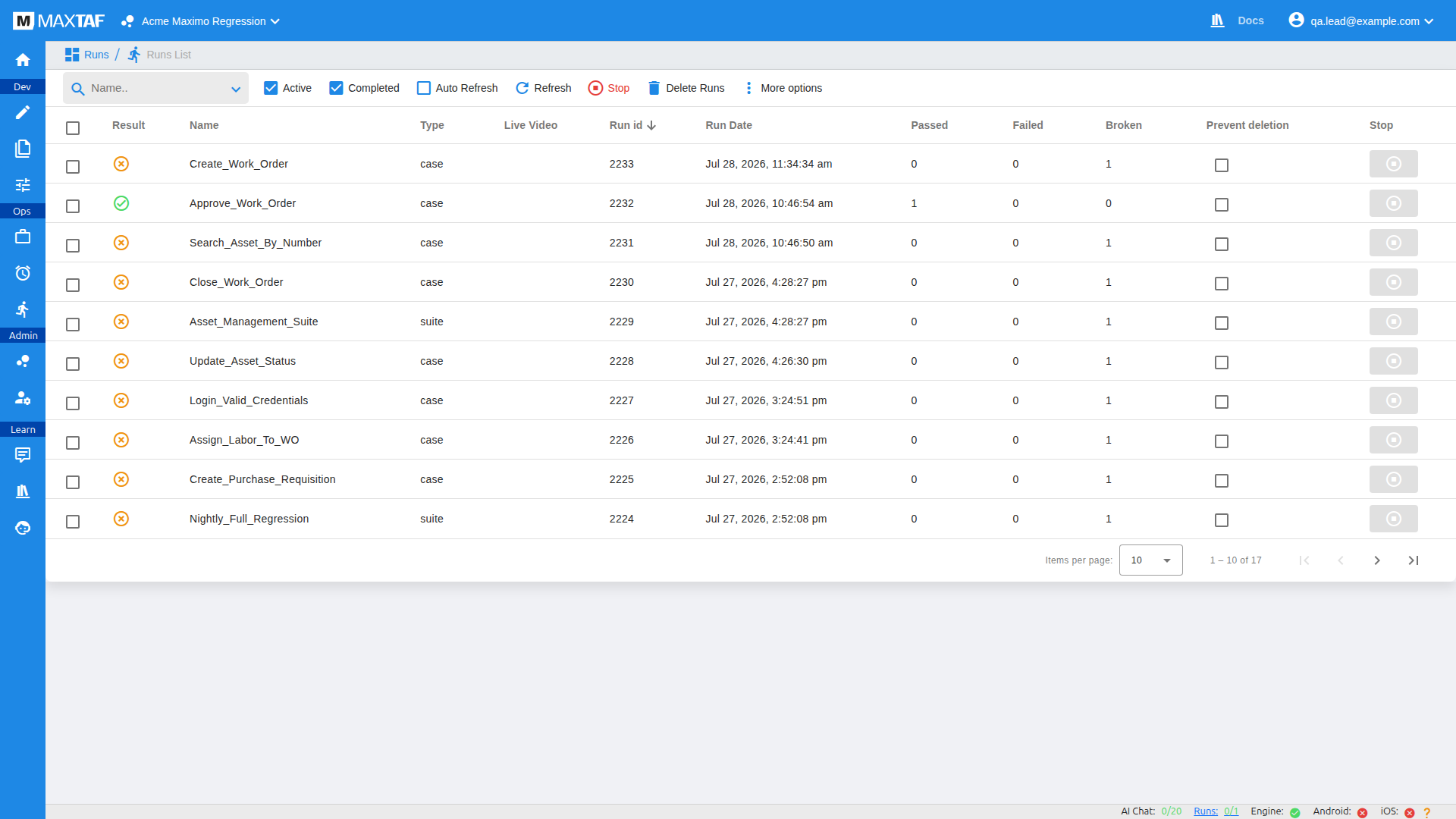
Every execution creates a run (Ops ▸ Runs).
Runs list
Columns include Result, Name, Type (case/suite), Live Video, Run id, Run Date, Passed / Failed / Broken counts, Prevent deletion New and a per-row Stop button. Toolbar: Active/Completed filters, Auto Refresh, Refresh, Stop, Delete Runs, More options. Result states you'll see:
| State | Meaning |
|---|---|
| Active | Currently running. |
| Success | Completed, all assertions passed. |
| Failed | An assertion failed. |
| Broken | A non-assertion error stopped the case. |
| Stopped | Manually stopped. |
| Queued / Waiting | Waiting for a free execution slot. |
| Failed to start | Rare infrastructure issue — contact support. |
Run details, live video & recordings
- Run details — id, case/suite, result, state, user, start/complete dates, duration, progress, and pass/fail counts. Suite runs list their child runs.
- Live video — for single-case runs you can watch the browser live and click the mouse icon to take control mid-run.
Browser.pause(driver,"text")pauses indefinitely until you press Continue. - Video recording — set
mx.selenium.enable_video_recording=true; the video is stored in the File Systemrunsfolder under the run id. - Failure / Log / Console output / Params / Code dropdowns give the stack trace (click the line number to open the failing line), live log, browser console, effective parameters, and the executed code.
Allure reports
Every run auto-generates an Allure graphical report, opened from the run details (a button also pops it out full-screen). Suite runs aggregate their cases into one Allure report.
AI Assistant New
The AI Assistant (Learn ▸ chat icon) is a built-in helper for writing and debugging tests. It opens as a slide-out panel and keeps a separate chat per item — e.g. "'Login do nothing 1' Assistant" — so each case's conversation stays with it.
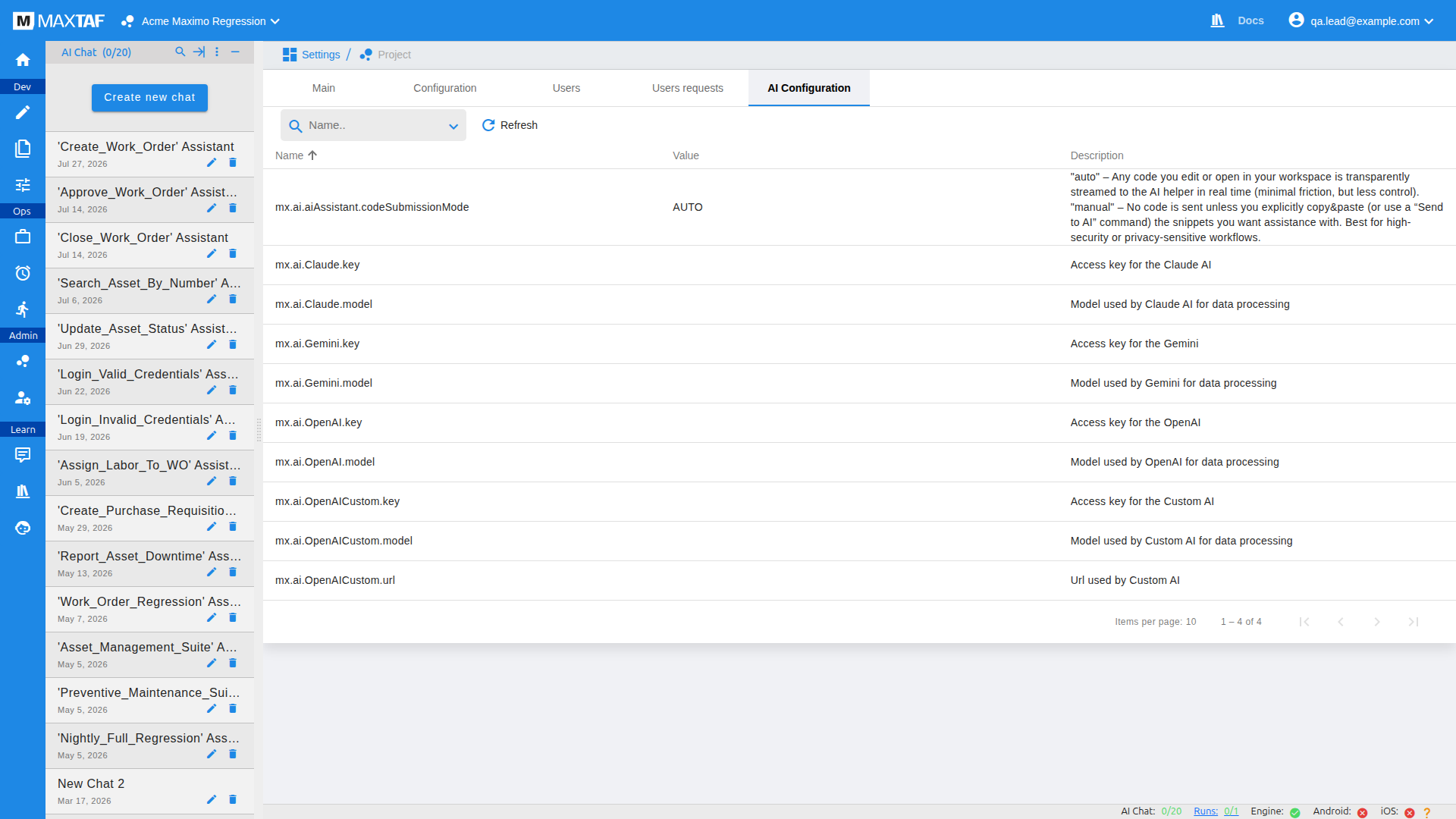
- Create new chat to start a fresh conversation, or reopen an existing one from the list (each has edit/delete controls).
- Usage is metered — the x/20 counter (header and bottom status bar) tracks messages against your quota.
- What the assistant can see is governed by code submission mode — configured per project (see below).
mx.ai.aiAssistant.codeSubmissionMode decides whether your code is shared with the AI. auto streams the code you edit/open to the assistant in real time (least friction); manual sends nothing unless you explicitly submit a snippet (best for privacy-sensitive work).
Project settings
Admin ▸ Project Settings has five tabs: Main, Configuration, Users, Users requests and AI Configuration New.
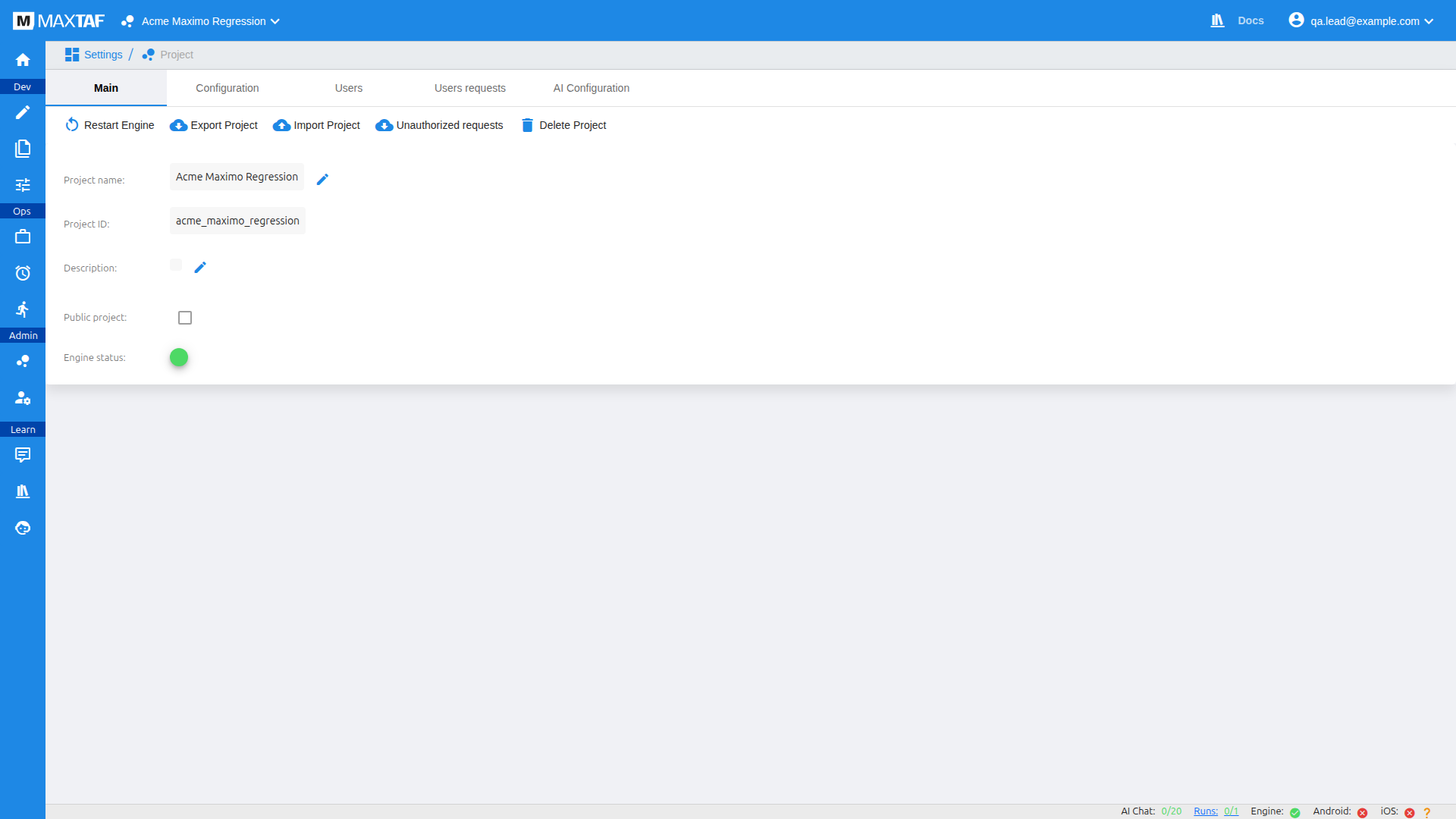
- Main — project name, ID and description; make the project public (confirm by typing the exact project id, e.g.
acme_maximo_regression); Restart Engine; Export/Import Project (backup/restore — see Backup); Unauthorized requests New; Delete Project. A live Engine status dot shows engine health. - Configuration — configuration parameters (e.g. per-language library locations). These are not case parameters — use the Parameters page for those.
- Users — add collaborators by email. People without an account yet appear under…
- Users requests — pending/invited users who haven't created an account.
AI configuration New
The AI Configuration tab connects the AI Assistant to a model provider. It supports Claude, Gemini, OpenAI and a custom endpoint.
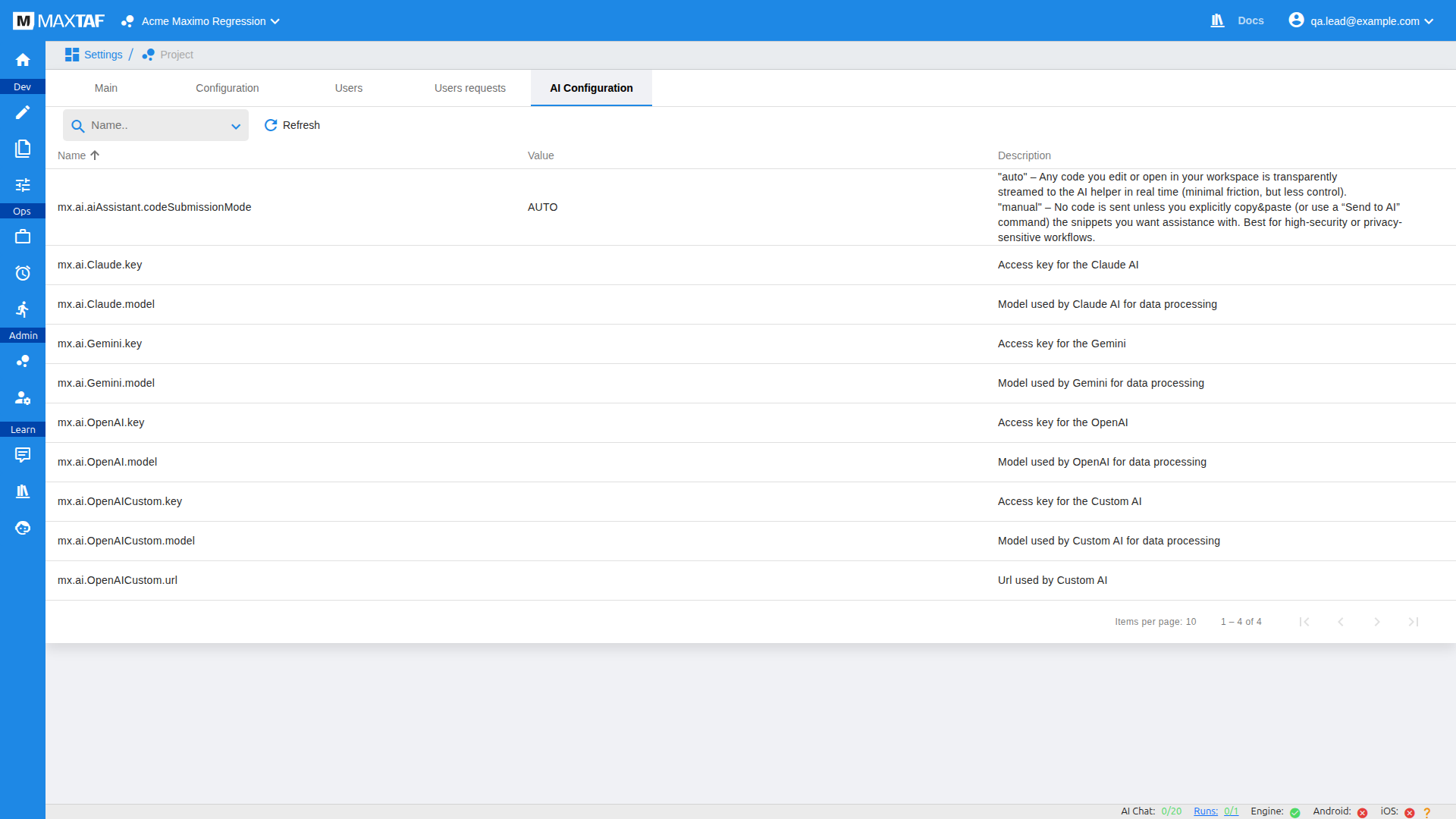
You only need to fill in the provider you intend to use. Click a row's value to edit it and paste your key/model.
| Parameter | Purpose | Example value |
|---|---|---|
mx.ai.aiAssistant.codeSubmissionMode | auto = stream edited/opened code to the assistant; manual = only explicitly-sent snippets. | manual |
mx.ai.Claude.key | Anthropic API key for Claude. | sk-ant-api03-… |
mx.ai.Claude.model | Claude model id. | claude-sonnet-4-6 |
mx.ai.Gemini.key | Google AI API key. | AIzaSy… |
mx.ai.Gemini.model | Gemini model id. | gemini-2.5-pro |
mx.ai.OpenAI.key | OpenAI API key. | sk-proj-… |
mx.ai.OpenAI.model | OpenAI model id. | gpt-4o |
mx.ai.OpenAICustom.key | Key for a custom OpenAI-compatible provider. | sk-… |
mx.ai.OpenAICustom.model | Model id on that provider. | llama-3.1-70b-instruct |
mx.ai.OpenAICustom.url | Base URL of the custom endpoint. | https://llm.example.com/v1 |
These keys grant access to paid AI services — treat them like passwords. Combine with codeSubmissionMode=manual if you don't want case code shared with the provider automatically.
User settings
Admin ▸ User Settings covers your account: email, name, groups and your personal API key (with an invalidate option), plus user parameters and preferences. User-level parameters can override case parameters — for example pointing your runs at a personal QA environment URL without editing each case.
Mobile testing New
Alongside web, MaxTAF Cloud is adding mobile execution. A case's Platform can be Web, Android or iOS, and the bottom status bar shows the health of the Android and iOS engines next to the web Engine indicator.
Mobile engines are an emerging capability — a green status-bar dot means the engine is available in your environment. Choose the target platform when creating the case; the rest of the workflow (Script, Run, Runs, reports) is the same as for web.
Parameter reference
Parameters have a name and a value. Standard names are fixed and begin with mx.; custom names are yours. Values can be set at several layers — test/case, suite, user, project, system — and merged according to the mx.params.* rules below. Every table below includes an example value and a usage note so you know exactly what to type.
Throughout this reference we use a fictional project: Acme Utilities — Maximo Regression, which tests work-order and asset flows against a Maximo QA environment. Names like work_orders.csv, PUMP-1042 and maximo-qa@example.com are illustrative — substitute your own.
Parameter resolution
These control which layers supply a parameter and who wins when the same name is set in more than one place.
| Parameter | Meaning | Example value | What it does in the example |
|---|---|---|---|
mx.params.source | Which layers contribute + priority order (earliest wins), --separated. | test-project | Case values win; anything not set on the case falls back to project parameters. |
mx.params.method | union (merge all listed layers) or intersection. | union | Merge case + project parameters together. |
mx.params.method.source | The layer intersected against (ignored for union). | test | Only relevant if method is intersection. |
mx.[layer].NAME | Read a value from another layer inside a parameter value. | ${mx.project.maximo_env_url} | Pull the shared Maximo URL from the project into a case parameter. |
Execution & notifications
| Parameter | Meaning | Example value | Effect |
|---|---|---|---|
mx.run.time_to_live | Max run time in seconds (capped at 300 / 5 min). | 180 | Kill the run if it exceeds 3 minutes. |
mx.run.case.repeat_on_failure | Retry a failing case up to N times until it passes. | 2 | Re-run a flaky Maximo login up to 2 more times before marking it failed. |
mx.notify | When to email: pass / fail / always / never. | fail | Email only when the case/suite fails. |
mx.notify.email | Recipient email(s), comma-separated. | maximo-qa@example.com, lead@example.com | Notify the QA mailbox and the test lead. |
Add them like any parameter — in the case Main tab's parameter config, or in a schedule's Run params. For a nightly regression that emails only on failure you'd add two lines:
mx.notify=fail
mx.notify.email=maximo-qa@example.com
Data-driven testing
Point a case at a spreadsheet and it runs once per row. Suppose /dd/work_orders.csv contains:
assetNum,priority,crew
PUMP-1042,1,MECH-A
VALVE-2207,3,MECH-B
MOTOR-0088,2,ELEC-A| Parameter | Meaning | Example value |
|---|---|---|
mx.datadriven.file | Marks the case data-driven and points at the file (.csv/.xls/.xlsx). | /dd/work_orders.csv |
mx.datadriven.runtype | Run the rows serial or parallel. | parallel |
mx.datadriven.name.### | Inject a column by header name into a parameter. | asset=${mx.datadriven.name.assetNum} |
mx.datadriven.col.### | Inject a column by position (1-based) when there is no header. | crew=${mx.datadriven.col.3} |
In the case parameters you'd map the columns, then read them in code as strings:
// Parameters (Main tab):
//   mx.datadriven.file = /dd/work_orders.csv
//   mx.datadriven.runtype = parallel
//   asset    = ${mx.datadriven.name.assetNum}
//   priority = ${mx.datadriven.name.priority}

String asset    = mxService.getParam("asset");      // e.g. "PUMP-1042"
int    priority = Integer.parseInt(mxService.getParam("priority"));
Execution engine (Selenium)
| Parameter | Meaning | Example value |
|---|---|---|
mx.selenium.server | Where the browser runs: a shared pool, a private pool, or a Selenium/grid address. | ${mx.system.common_pool} |
mx.selenium.mode | Remote grid vs local execution. | remote |
mx.selenium.browser | Browser to use (Linux execution). | chrome |
mx.selenium.enable_video_recording | Record the run to the runs folder. | true |
mx.selenium.slow_down_level | Insert delays between actions (0 = full speed; higher = slower, easier to watch). | 3 |
mx.selenium.proxy | Route the browser through an HTTP proxy. | http://proxy.example.com:8080 |
A typical Maximo case runs on the shared pool with video on:
mx.selenium.server=${mx.system.common_pool}
mx.selenium.mode=remote
mx.selenium.browser=chrome
mx.selenium.enable_video_recording=true
mx.selenium.slow_down_level=0
To point at your own Selenium grid instead of the pool, give the full endpoint:
mx.selenium.server=http://selenium-grid.example.com:4444/wd/hubMaximo & AI keys
| Parameter | Meaning | Example value |
|---|---|---|
mx.maximo.address | Maximo instance URL used by MXML/Maximo cases (usually stored as a project parameter and referenced). | https://maximo-qa.example.com/maximo |
mx.ai.Claude.key | Provider API key for the AI Assistant. | sk-ant-api03-… |
mx.ai.Claude.model | Model id for that provider. | claude-sonnet-4-6 |
mx.ai.aiAssistant.codeSubmissionMode | How much of your code the assistant sees. | manual |
MXML cases navigate using the project parameter rather than a hard-coded URL, so the same case works across environments:
<native>driver.get(mxService.getParam("mx.maximo.address"))</native>See AI configuration for the full list of mx.ai.* keys and example values.
Custom & project parameters
Custom parameters are your own name/value pairs, read in code as strings. For a work-order case you might set:
assetNum=PUMP-1042
woStatus=APPR
technician=A.MORGAN
Project parameters (the Parameters page) are shared across every case. Read, write and reference them like this:
// Read a shared value
String maximoUrl = mxService.getProjectParam("maximo_env_url");
// e.g. https://maximo-qa.example.com/maximo

// Write / update a shared value (created if missing)
mxService.setProjectParam("last_work_order", "PUMP-1042");

// Reference a project parameter inside a case parameter value:
//   targetEnv = ${mx.project.maximo_env_url}
A whole-number project parameter (e.g. wo_sequence = 1042) can be flagged to auto-increment so each run reads the next number — handy for generating unique work-order references.
| When the UI asks for… | Enter something like… |
|---|---|
| Notify email (schedule Run params) | maximo-qa@example.com |
| Notify condition | fail (or always for a daily digest) |
| Data-driven file path | /dd/work_orders.csv |
| Max run time (seconds) | 180 (max 300) |
| Retry on failure | 2 |
| Selenium server | ${mx.system.common_pool} |
Maximo URL (project param maximo_env_url) | https://maximo-qa.example.com/maximo |
| Confirm "Make project public" | type the exact project id, e.g. acme_maximo_regression |
| Add a user (Settings ▸ Users) | their email, e.g. new.tester@example.com |
| AI provider key / model | sk-ant-api03-… / claude-sonnet-4-6 |
mx.selenium.mode and mx.selenium.slow_down_level were hidden in the previous guide but are actively used today, and the Maximo/MXML keys (mx.maximo.*) and AI keys (mx.ai.*) are new. Legacy MaxTAF Bridge / node-pool / drive-mapping workflows are no longer the primary path.
Backup & maintenance
Project backup
From Project Settings ▸ Main, Export Project backs up Cases, Suites, Schedules, File-system files and Project parameters into one file. Runs are not included — download the File-system runs folder separately if you need them. Import Project restores a backup, letting you choose which areas to overwrite.
Data backup (piecemeal)
- Cases / Suites — from their lists, export (nothing selected = all) and import; exports include contained items.
- File system — right-click the root ▸ download (auto-zipped); you can exclude the
runsfolder. - Project parameters — export/import from the Parameters page.
- Schedules — export/import from the Schedules page (imports the referenced items too).
Restart the engine
If runs stop responding, Restart Engine (Project Settings ▸ Main) cycles the project's execution engine. The status-bar Engine dot returns to green when it's back.
More guides
This user guide is the hub of a larger documentation set. For deeper, task-specific material, see:
Browse the whole set from the documentation hub.